
Ensuring that the audit functionality is properly configured in your WebLogic server is crucial for enhancing security and tracking activities. In this post, we will provide a step-by-step guide on how to check the basic audit settings in WebLogic.
1. Access the Administration Console
First, log in to the WebLogic Administration Console. The typical URL format is
http://[server address]:7001/console
Plain Text
복사
2. Check Audit Provider Settings
1.
Navigate through the left-hand menu as follows:Security Realms > myrealm > Providers > Auditing
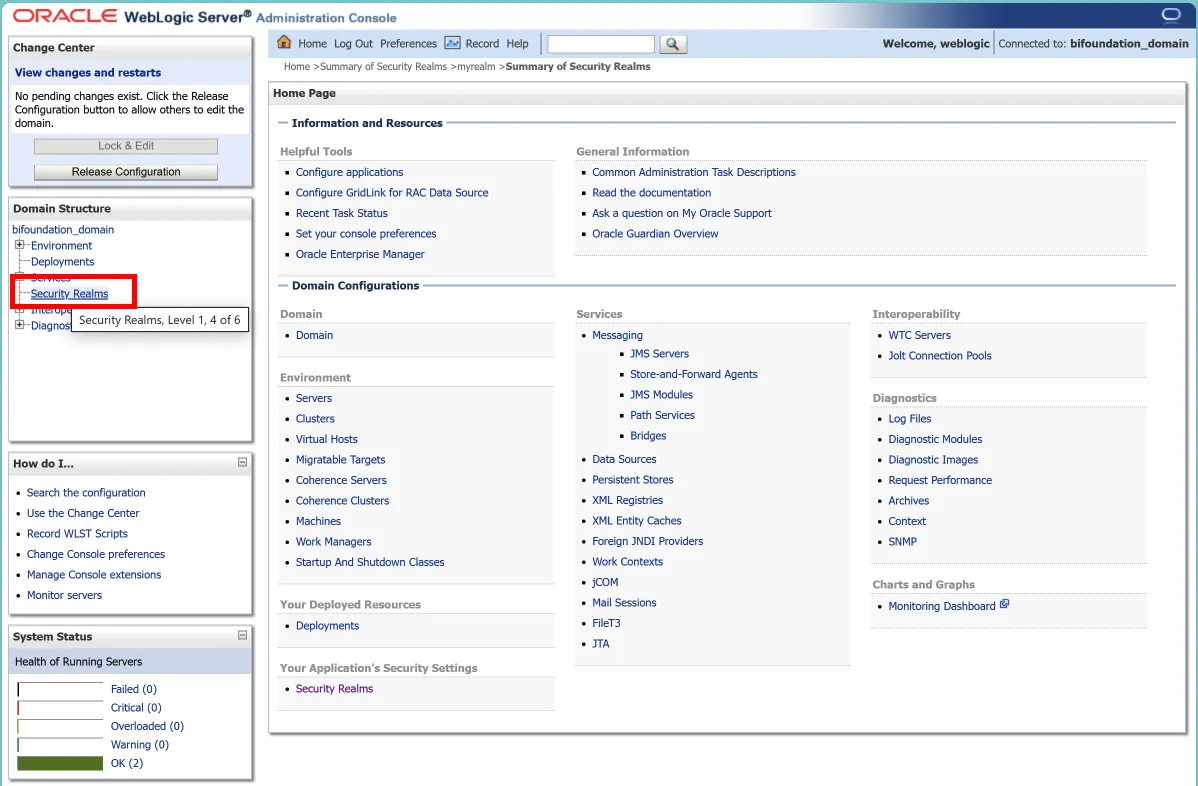
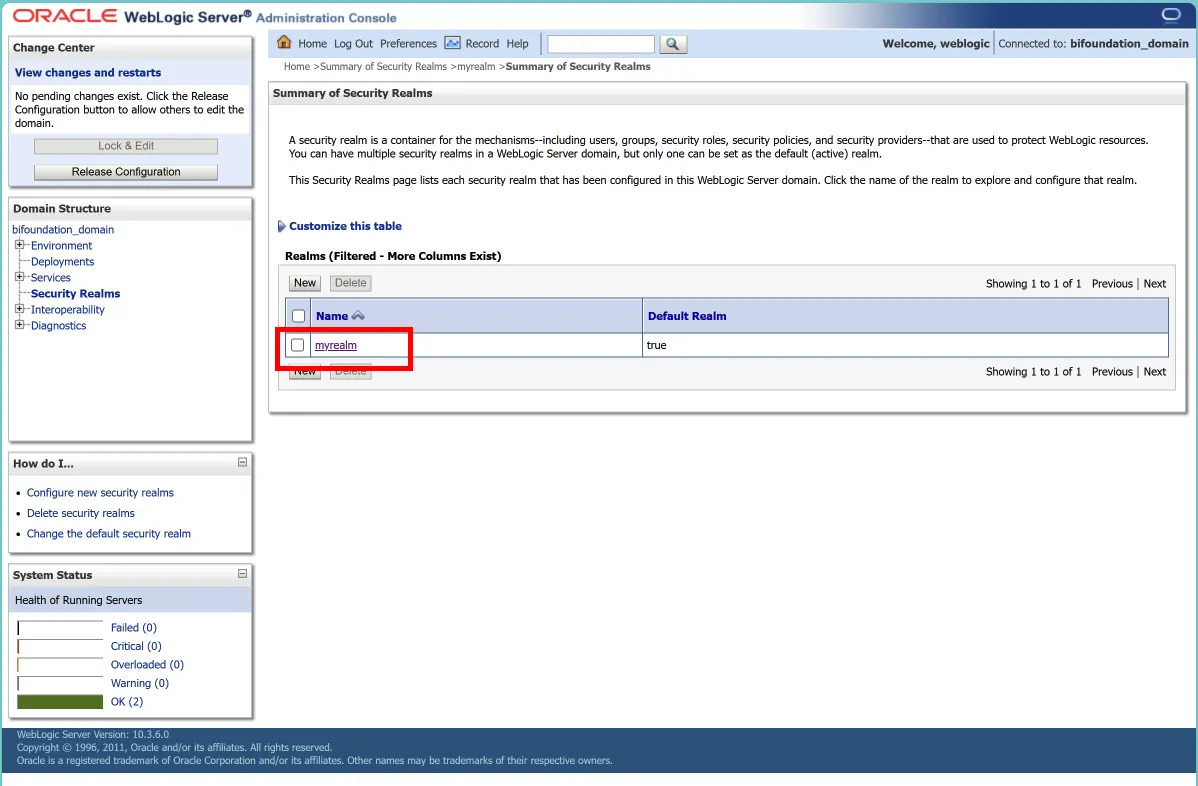
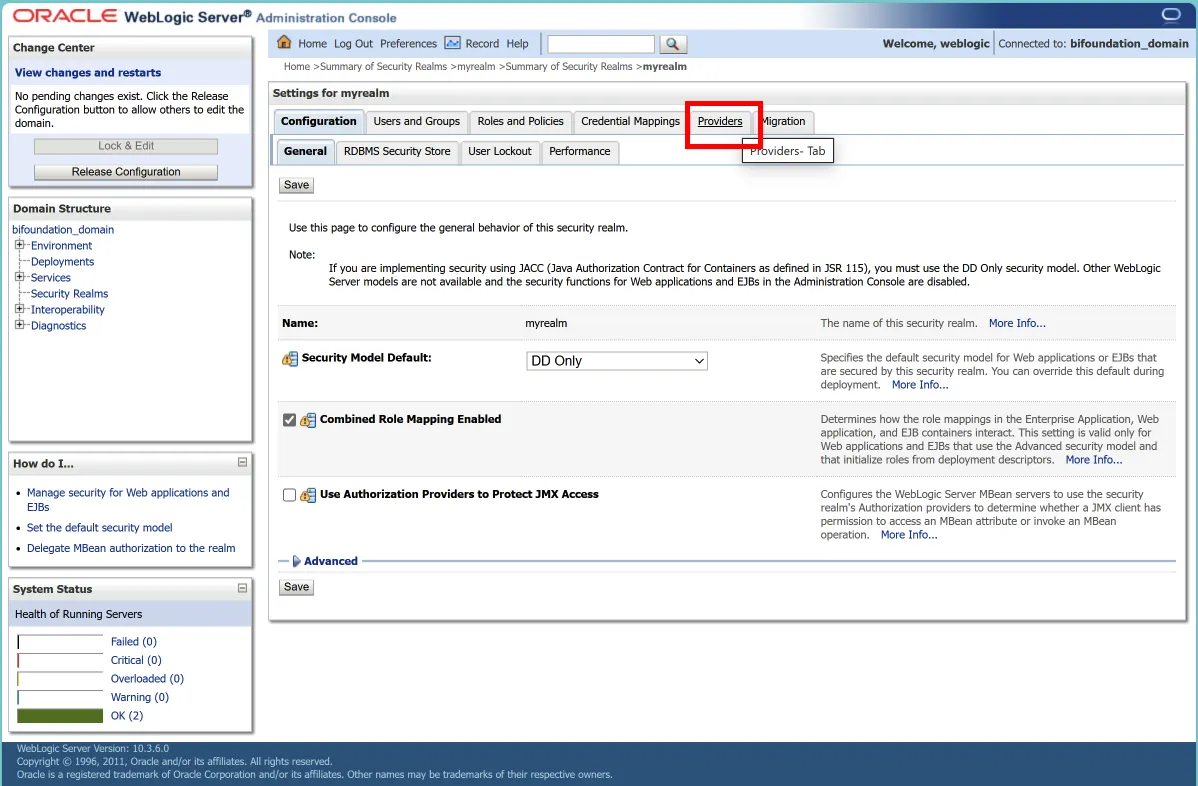
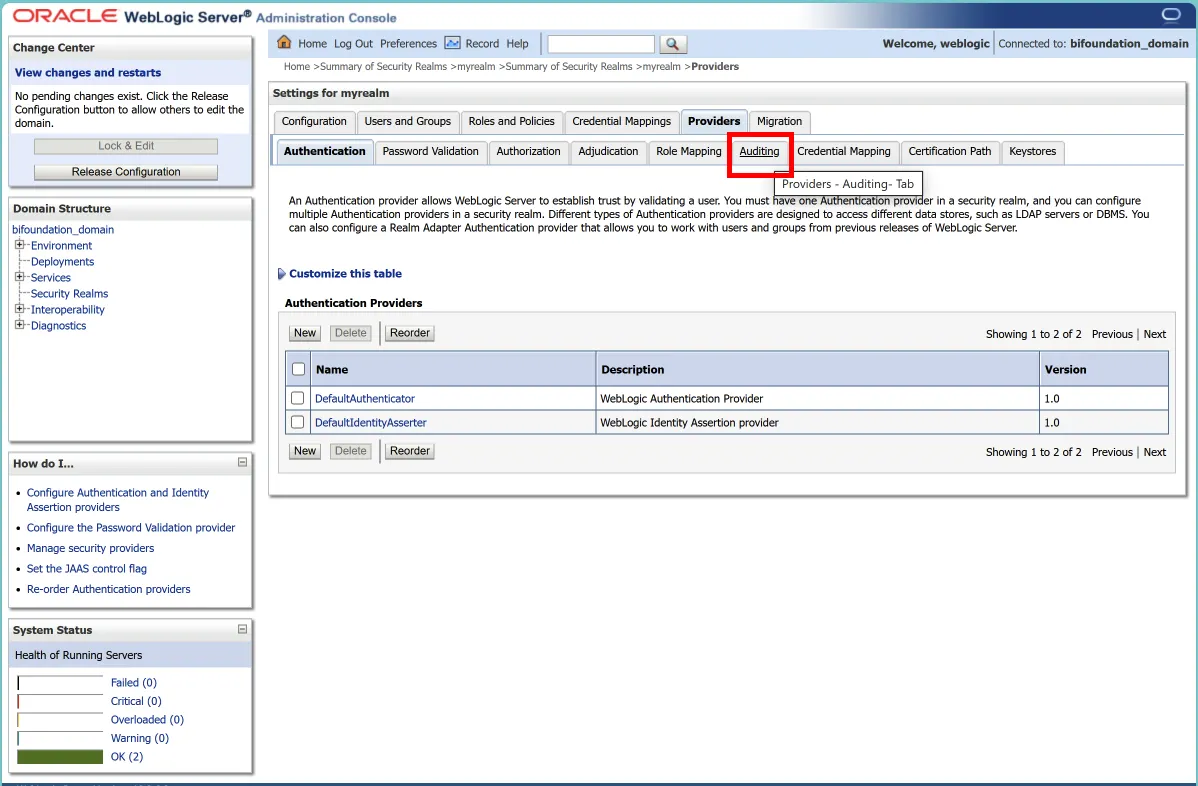
On the 'Auditing' page, review the list of configured auditing providers.
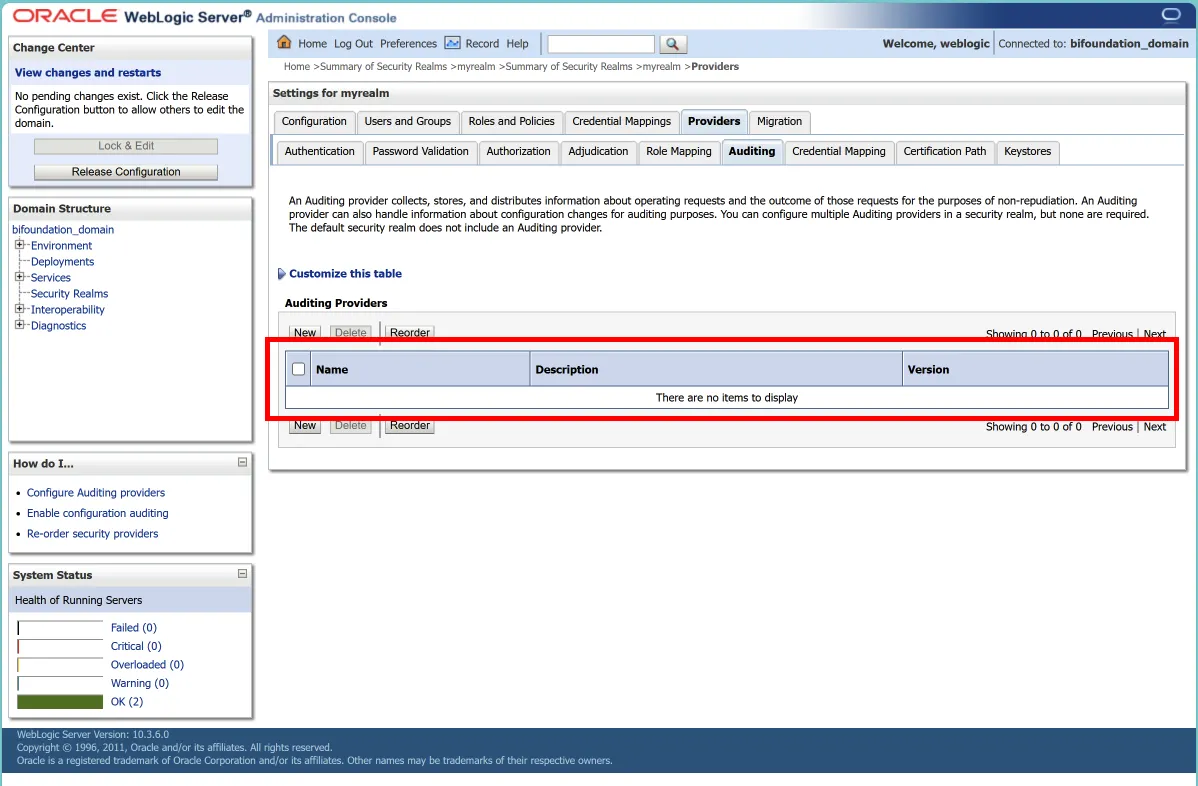
If the list is empty, it means no auditing providers are configured.
4. Verify Audit Log File
1.
Check the server's log directory for the presence of the DefaultAuditRecorder.log file.
2.
If this file exists, it indicates that auditing is enabled.
5. Confirm Custom Audit Log Location
Look for the following Java option in the server startup script:
-Dweblogic.security.audit.auditLogDir
Java
복사
If this option is set, it specifies a custom location for the audit logs.
Conclusion
By following these steps, you can thoroughly check the basic audit configuration of your WebLogic server. If the audit functionality is not properly set up, it’s advisable to configure it according to your security requirements. Regularly reviewing your audit settings can significantly enhance your system's security posture.